
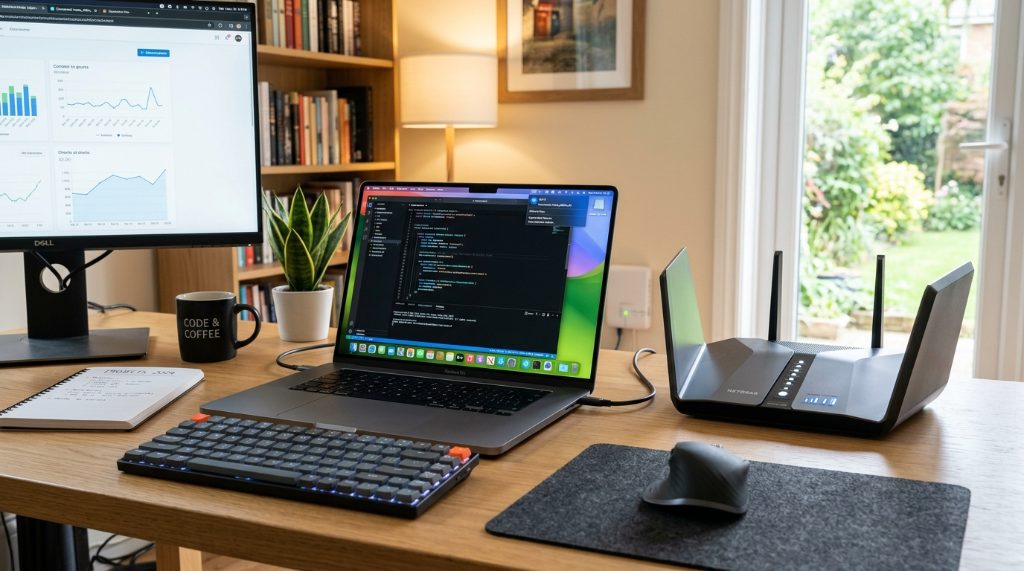
How to Build a Reliable Wi-Fi Setup for Working From Home
Your video call freezes at the exact moment you start sharing your screen. The router sits two rooms away, and no amount of repositioning the laptop helps. That is the reality of home-office Wi-Fi: coverage is not the same as reliability, and a strong signal bar does not guarantee a stable connection. If you are weighing a guide to mesh Wi-Fi systems against simpler fixes, the key is understanding what actually causes dropped calls and slow uploads before you spend money. This article walks through the decisions that matter most.
Quick Answer
Build reliability in this order: connect your work device to the router by Ethernet if possible, then fix placement and channel congestion, and only then add hardware. If you need coverage across multiple rooms or floors without running cables, a mesh system with wired backhaul where available is the most dependable upgrade. Mesh helps most when your problem is distance or walls — not when your problem is an overloaded or outdated internet plan.
Key Takeaways
- Reliability and coverage are different problems. Mesh fixes coverage; congestion, weak hardware, and slow upload speeds usually need different solutions.
- Ethernet remains the single most reliable connection for a fixed desk setup. Wi-Fi should be the fallback, not the default, for your primary work machine.
- Mesh nodes perform far better when connected by Ethernet backhaul, even if that means running one cable along a baseboard.
- Upload speed matters more than download speed for video calls, screen sharing, and cloud backups — check it before blaming your router.
- Placement beats raw specs. A mid-range system placed well will outperform a premium system stuffed in a closet.
Start by Diagnosing the Actual Problem
Most people upgrade hardware before identifying what is broken. That leads to spending money on a mesh kit when the real issue was a 5 Mbps upload speed on a legacy cable plan.
Run a speed test from the exact spot where you work, on the exact device you work from. Then run the same test while connected directly to the router with an Ethernet cable. Compare three numbers: download speed, upload speed, and latency (ping). If the wired result is also poor, the problem is your internet service or modem, not your Wi-Fi. No mesh system can create bandwidth that does not arrive at the house.
If the wired result is strong but Wi-Fi is weak, you have a genuine wireless problem. That narrows the fix considerably.
Signs You Have a Coverage Problem
Coverage problems look like this: speeds drop sharply as you move away from the router, certain rooms consistently show one or two bars, and the connection improves when you move closer. Walls, floors, and large metal objects such as refrigerators or filing cabinets absorb and reflect Wi-Fi signals, especially on the 5 GHz band that carries most of your throughput.
Signs You Have a Congestion Problem
Congestion problems look different. Speeds are inconsistent even close to the router, calls degrade in the evening when neighbors are streaming, and the connection works fine at 7 a.m. but struggles at 8 p.m. In apartments and dense neighborhoods, dozens of networks compete for the same channels. Switching channels or moving to a less crowded band often helps more than new hardware, If you ever lose connection while upgrading your network, check out this guide on how to recover your forgotten wi-fi password a complete guide to get back online quickly.
Mesh vs. Router vs. Extender: What Actually Helps
These three options solve different problems, and choosing the wrong one wastes money.
| Option | Best For | Main Limitation |
|---|---|---|
| Single router | Small homes, one or two rooms of coverage | Signal weakens significantly through multiple walls |
| Wi-Fi extender | One specific dead zone on a budget | Often halves throughput and creates a separate network name |
| Mesh system | Multi-room or multi-floor coverage with seamless roaming | Costs more; wireless backhaul still loses speed per hop |
A mesh system’s real advantage is not raw range — it is seamless handoff. Your laptop moves between nodes without dropping the connection, which matters if you take calls while walking around. Extenders typically require you to reconnect manually and often cut bandwidth in half because they receive and retransmit on the same radio.
How Many Mesh Nodes Do You Actually Need
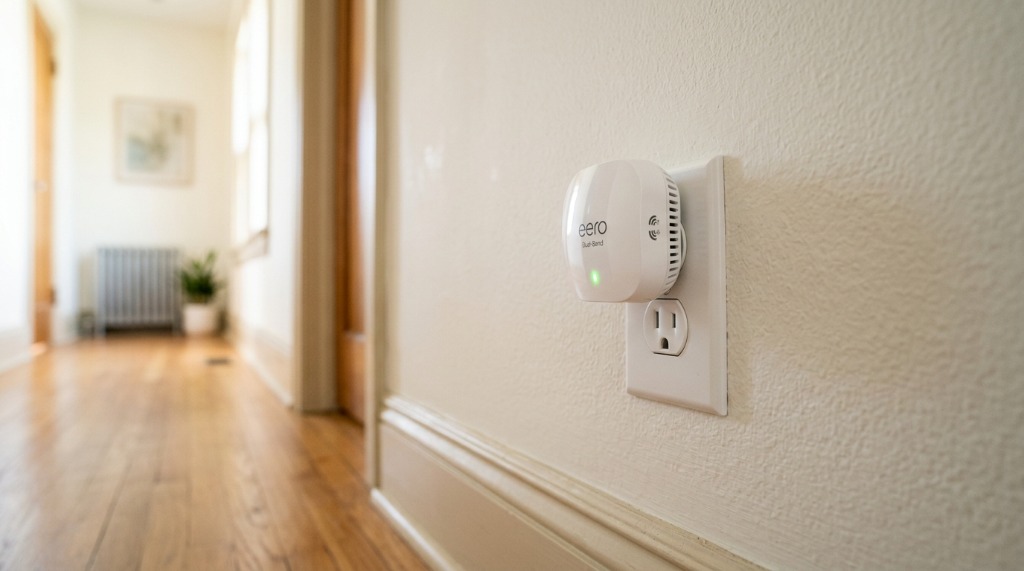
Most homes need two to three nodes. A single node covers roughly 1,500 to 2,000 square feet in open conditions, but that figure assumes few interior walls and no floor separation. Real-world coverage is usually lower.
Practical sizing:
- Under 1,200 sq ft, open layout: one good router is often enough.
- 1,200–2,500 sq ft, one floor: two nodes, placed at opposite ends.
- Multi-floor home: one node per floor, positioned near the staircase where the signal can travel vertically.
- Long or L-shaped layouts: three nodes, because signal does not turn corners well.
More nodes is not automatically better. Each wireless hop adds latency and reduces throughput. Three well-placed nodes beat five scattered ones.
Placement Rules That Matter More Than Specs
Put nodes in the open, not in cabinets, behind TVs, or on the floor. Elevate them to roughly waist height or higher. Keep them away from microwaves, cordless phone bases, baby monitors, and large mirrors. If you must choose between a central location and a convenient one, choose central — the node needs line-of-sight-ish paths to both your devices and the other nodes.
Wired Backhaul: The Upgrade Most People Skip
Wireless backhaul means your mesh nodes talk to each other over Wi-Fi. Wired backhaul means they talk over Ethernet. Wired is dramatically more stable and preserves nearly full speed at every node.
You do not need to rewire the house. Options include:
- Running a single flat Ethernet cable along a baseboard or under a rug to the far node.
- Using existing coaxial outlets with MoCA adapters, which carry network data over TV cable.
- Using powerline adapters where coax and Ethernet are impractical — though performance varies widely by home wiring.
Even one wired connection between the main router and the node nearest your desk can transform call quality. If you can only wire one thing, wire the node in your office.
Settings and Habits That Keep Calls Stable
Hardware is only part of the picture. A few configuration choices prevent most day-to-day frustration.
- Use the 5 GHz band for work devices. It is faster and less congested, though it travels shorter distances. Let 2.4 GHz handle smart plugs and older devices.
- Enable band steering if your system offers it, so devices automatically pick the better band.
- Set QoS or priority rules for your work laptop and video conferencing apps if the router supports it.
- Update firmware. Mesh systems receive meaningful stability fixes long after launch.
- Disconnect idle devices during calls — cloud backups, game downloads, and 4K streaming compete for the same airtime.
- Turn off the router’s “smart” auto-reboot if it triggers mid-meeting.
Should You Use a Separate SSID for Work?
A separate network for work devices is not required, but it can help. It lets you apply stricter priority rules and keeps personal devices from interrupting. The trade-off is extra management. For most home offices, one network with QoS rules is simpler and just as effective.
Common Mistakes That Undermine a Good Setup
Even with solid hardware, these errors cause most remaining problems:
- Placing the main router in a basement utility corner because that is where the cable enters.
- Stacking nodes directly on top of each other, which creates interference instead of coverage.
- Assuming a higher number on the box (Wi-Fi 6E, Wi-Fi 7) fixes a slow internet plan.
- Ignoring upload speed when the entire job depends on video calls.
- Using an old modem that caps throughput below what the plan delivers.
- Leaving the default Wi-Fi channel in a crowded building.
When Mesh Wi-Fi Is Not the Answer
Mesh is the wrong purchase if your wired speed test is already poor, if your home is small and a single router covers it, or if your only problem is one dead zone that a repositioned router could fix. It is also overkill if you work from a single fixed desk and can run one Ethernet cable — that cable is cheaper and more reliable than any mesh kit.
Mesh earns its cost when you genuinely move around, when multiple people work and stream simultaneously, or when your layout defeats a single router no matter where you put it.
Frequently Asked Questions
Is mesh Wi-Fi better than a single router for working from home?
It depends on your layout. Mesh is better when you need coverage across multiple rooms or floors and want seamless roaming between them. A single router is often sufficient — and simpler — in smaller homes or when your desk is close to the router.
Do mesh systems reduce internet speed?
Wireless backhaul reduces speed at each hop because nodes retransmit data over the same airwaves. Wired backhaul largely eliminates this loss. In practice, a well-placed two-node system with wired backhaul delivers near-full speed at both nodes.
How do I fix lag on video calls?
Check upload speed first, then connect your work device by Ethernet if possible, then prioritize conferencing traffic in your router settings. Lag usually comes from insufficient upload bandwidth or airtime congestion, not from distance alone.
Can I mix mesh nodes from different brands?
Generally no. Mesh systems rely on proprietary communication between nodes, so mixing brands usually breaks the seamless roaming that makes mesh worthwhile. Use nodes from the same product line.
Where should I put my main mesh node?
Place it centrally and elevated, away from walls, metal objects, and appliances. If your internet enters the home in a corner, consider running a cable to a more central spot rather than accepting the default location.
Is Wi-Fi 6 necessary for remote work?
Not strictly. Wi-Fi 5 handles most remote work comfortably if your internet plan and placement are solid. Wi-Fi 6 helps mainly in crowded environments and with many simultaneous devices.
Conclusion
Reliable home-office Wi-Fi comes from sequence, not spending. Test your wired speed first, fix placement and congestion second, and add mesh hardware only when coverage is genuinely the bottleneck. If you do buy mesh, prioritize wired backhaul for at least the node near your desk and keep node count modest. That combination delivers stable calls and consistent throughput far more dependably than a larger, poorly placed system.
Sorry, the comment form is closed at this time.