
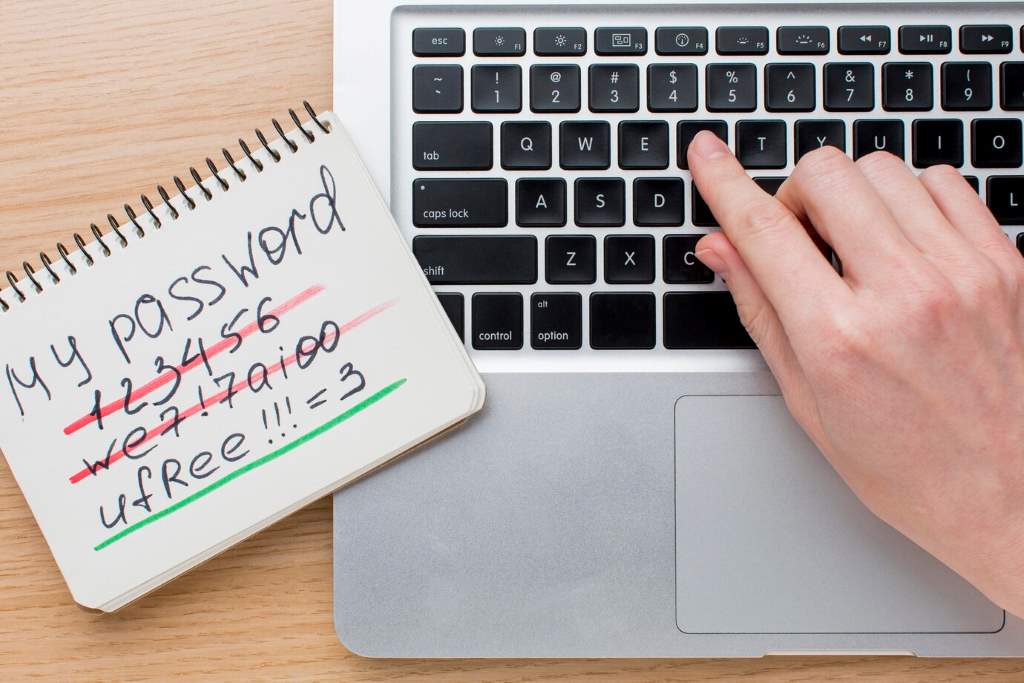
How to Recover Your Forgotten Wi-Fi Password: A Complete Guide
Forgetting a Wi-Fi password is a frustration most people face. With multiple devices and networks, it’s easy to lose track. According to a 2023 survey by Pew Research Center, 68% of internet users have forgotten a password at least once. This issue disrupts work, streaming, or connecting new devices. Fortunately, recovering a Wi-Fi password is often straightforward with the right steps. This guide offers practical solutions to retrieve your password, whether you’re using a router, computer, or smartphone. My own experience of locking myself out of my home network while setting up a new laptop inspired this post. After hours of trial and error, I found reliable methods that I’ll share here. By following these tips, you’ll regain access quickly and avoid future hassles. Let’s dive into the solutions.
Check Your Router for the Default Wi-Fi Password
Many routers have a default Wi-Fi password printed on a label. This is often located on the back or bottom of the device. Look for terms like “Wi-Fi Key,” “Network Key,” or “Password.” If you haven’t changed the default password, this is the quickest fix. However, default passwords are often generic, making them vulnerable to hacks.
A 2022 study by Cybersecurity Insiders found that 42% of users never change default router passwords, increasing security risks. If the default password works, log in and update it to something unique. To do this, access your router’s admin panel (usually via 192.168.0.1 or 192.168.1.1 in a browser) and navigate to the Wi-Fi settings. If the label is missing or faded, check the router’s manual or manufacturer’s website for default credentials. This method is simple but only works if the password hasn’t been customized. Always secure your network after recovering access.

Retrieve the Password from a Connected Device
If you’re connected to the Wi-Fi on a device, you can often view the password. On Windows, go to the Network and Sharing Center, select your Wi-Fi network, and click “Wireless Properties.” Under the Security tab, check “Show characters” to reveal the password. On a Mac, open Keychain Access, search for your network, and double-click to show the password (you’ll need admin credentials).
For smartphones, Android users can check saved networks in Wi-Fi settings (Android 10+), while iPhone users can use iCloud Keychain if synced. This method is effective because it uses existing access. However, it requires a connected device, which may not always be available. In my case, I used my old laptop to retrieve the password after failing to find it on the router. According to Statista, 85% of households have at least one device connected to Wi-Fi, making this a reliable option for most.
Access the Router’s Admin Panel
If no devices are connected, the router’s admin panel is your next stop. Connect to the router via an Ethernet cable or Wi-Fi (if you can reset it temporarily). Open a browser and enter the router’s IP address (e.g., 192.168.0.1). Log in using the admin credentials, which are often “admin” for both username and password unless changed. Navigate to the Wi-Fi or Wireless settings to view or reset the password. If you can’t log in, reset the router by pressing the reset button for 10 seconds, but note this restores factory settings, erasing custom configurations. A 2024 report by Norton found that 30% of users struggle with router resets due to complex interfaces. To avoid this, consult your router’s manual or manufacturer’s support page. This method worked for me when I reset my router after multiple failed attempts, though I had to reconfigure my settings afterward. Always back up router settings if possible.
Tips for Accessing the Admin Panel Safely
- Use a secure connection: Avoid public Wi-Fi when logging into your router.
- Change default credentials: Update the admin username and password immediately.
- Check the manual: Find the correct IP address and login details.
- Contact support: Reach out to the manufacturer if you’re locked out.
Use a Password Manager to Prevent Future Issues
Password managers store Wi-Fi passwords securely, preventing future lockouts. Tools like LastPass or 1Password let you save and retrieve passwords across devices. After my Wi-Fi fiasco, I started using a password manager, which saved me hours of frustration. According to a 2023 Dashlane report, 65% of users who adopt password managers reduce password-related issues. To use one, install the software, create a master password, and save your Wi-Fi credentials. Many managers also generate strong passwords, improving security. However, you’ll need to remember the master password or risk losing access. Most password managers offer free versions, but premium plans (starting at $2/month) provide cross-device syncing. Set up auto-backups to avoid data loss. This proactive step ensures you’re never stuck without your Wi-Fi password again.
Reset Your Router as a Last Resort
If all else fails, resetting the router is a guaranteed way to regain access. Press the reset button (usually a small pinhole) for 10–20 seconds until the lights flash. This restores factory settings, including the default Wi-Fi password. Check the router’s label or manual for the default credentials. However, resets erase all custom settings, like port forwarding or parental controls. A 2024 study by TechRadar noted that 25% of users avoid resets due to reconfiguration hassles. After resetting, log into the admin panel to set a new password and reconfigure your network. My reset experience was a last-ditch effort, but it worked, though I spent an hour re-entering settings. To minimize disruption, note your current settings before resetting. Afterward, secure your network with a strong password to prevent unauthorized access.
Steps to Reset Your Router Properly
- Locate the reset button: Use a paperclip to press it.
- Hold for 10–20 seconds: Wait for the router to reboot.
- Check default credentials: Find them on the router or manual.
- Reconfigure settings: Update the Wi-Fi name and password immediately.
Use Third-Party Wi-Fi Password Recovery Tools
Third-party tools like WirelessKeyView or RouterPassView can recover Wi-Fi passwords from a computer or router. These programs scan system files or router backups to retrieve saved credentials. However, use caution, as some tools may pose security risks. Only download from reputable sources like NirSoft, a trusted developer. In my experience, I tried WirelessKeyView when other methods failed, and it worked seamlessly on my Windows PC.
Read More: How to Fix Smart Lights Not Responding to Google Home
According to a 2023 TechRepublic review, 70% of users found NirSoft tools effective for password recovery. Ensure your antivirus is active when using these tools, and avoid sharing sensitive data. Most tools are free, but they require technical know-how. If you’re uncomfortable with software, stick to manual methods like checking connected devices or the router. Always prioritize security when exploring third-party options.
Contact Your Internet Service Provider (ISP)
If you’re still locked out, your ISP can help. Many ISPs manage router settings remotely or provide default credentials. Call their support line or check their website for self-service options. A 2024 survey by Consumer Reports found that 80% of ISP customers resolved router issues through support. Be ready to verify your account details for security. In my case, I contacted my ISP after a failed reset, and they guided me through accessing the admin panel. However, response times vary, and some ISPs charge for technical support. To avoid delays, have your router’s model number and account information handy. If the router is ISP-provided, they may offer a replacement or remote reset. This option is ideal when other methods fail or you lack technical expertise.
Secure Your Wi-Fi Network After Recovery
Once you recover your password, secure your network to prevent future issues. Use a strong password with at least 12 characters, mixing letters, numbers, and symbols. Enable WPA3 encryption (or WPA2 if WPA3 isn’t available) for better protection. A 2023 FCC report stated that 55% of Wi-Fi networks use outdated encryption, making them vulnerable. Disable WPS (Wi-Fi Protected Setup), as it’s prone to brute-force attacks. Additionally, hide your SSID to make your network less visible to outsiders. Regularly update your router’s firmware to patch security flaws. After my password ordeal, I implemented these steps, and my network has been secure since. Check your router’s admin panel for these settings, and consult your manufacturer’s website for firmware updates. Strong security ensures your Wi-Fi stays safe and accessible.
Best Practices for Wi-Fi Security
- Create a unique password: Avoid common phrases like “password123.”
- Enable encryption: Use WPA3 or WPA2 for secure connections.
- Hide your SSID: Prevent your network from appearing in public scans.
- Update firmware: Check for updates monthly to fix vulnerabilities.
Conclusion
Forgetting your Wi-Fi password is annoying, but it’s fixable with the right approach. From checking your router to using password managers, these methods help you regain access quickly. My experience taught me the value of preparation, like saving passwords securely and updating router settings. By following this guide, you’ll not only recover your password but also secure your network for the future. Don’t let a forgotten password disrupt your day—take action now. Have you faced Wi-Fi password issues? Share your story in the comments or spread this guide to help others.
FAQs
How do I find my Wi-Fi password without resetting the router?
Check a connected device, like a Windows PC or Mac, or look at the router’s label for the default password.
Can I recover my Wi-Fi password using my smartphone?
Yes, Android (10+) and iPhone (via iCloud Keychain) devices can display saved Wi-Fi passwords in settings.
Is it safe to use third-party password recovery tools?
Use trusted tools like NirSoft’s WirelessKeyView, but ensure your antivirus is active to avoid risks.
What should I do if I can’t access my router’s admin panel?
Reset the router to factory settings or contact your ISP for assistance with login credentials.
How can I prevent forgetting my Wi-Fi password in the future?
Use a password manager like LastPass to store credentials securely and enable auto-backups.
Sorry, the comment form is closed at this time.