

How to Fix Smart Lights Not Responding to Google Home: Ultimate Troubleshooting Guide
Smart lights bring convenience and ambiance to homes, seamlessly controlled via Google Home. However, when they stop responding, frustration sets in. Whether it’s a single bulb ignoring commands or an entire setup acting up, troubleshooting can feel daunting. This guide offers practical, step-by-step solutions to restore your smart lights’ functionality. With clear tips and real-world insights, you’ll regain control in no time.
I’ve faced this issue myself—coming home to a dark living room despite shouting “Hey Google, turn on the lights!” After hours of trial and error, I learned the common culprits and fixes. This post draws from that experience, blending actionable advice with technical know-how. Let’s dive into why smart lights fail and how to fix them, ensuring your home stays bright and connected.
Why Smart Lights Stop Responding to Google Home
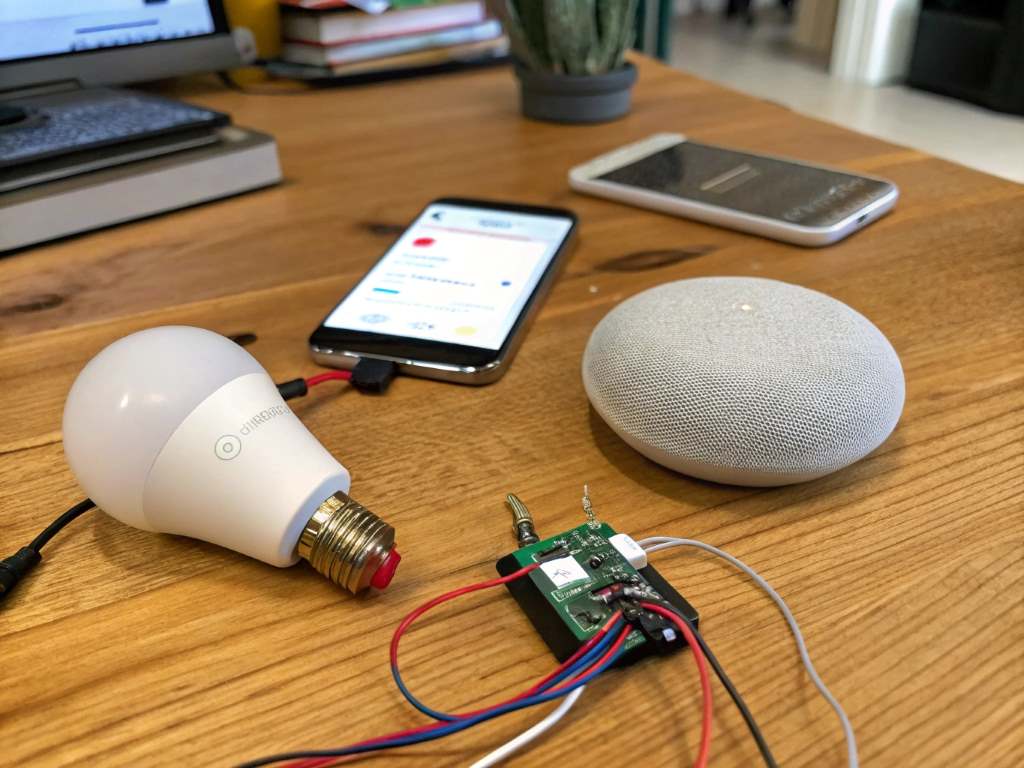
Smart lights rely on a complex network of devices, apps, and Wi-Fi connections. When one link breaks, communication fails. Common reasons include Wi-Fi interference, outdated firmware, or misconfigured settings. For instance, a 2023 study by Statista noted that 68% of smart home users face connectivity issues due to network congestion. This highlights the importance of a stable setup.
First, consider your Wi-Fi. Smart lights often use 2.4GHz bands, which can get crowded with other devices. Additionally, Google Home may lose sync if the light’s app (like Philips Hue or LIFX) isn’t updated. Power surges or improper grouping in the Google Home app can also disrupt functionality. Understanding these causes helps pinpoint the issue faster.
From my experience, a router reboot often resolves minor glitches. Once, my lights refused to dim, and a quick Wi-Fi reset fixed it. Check your setup for these common problems before diving deeper into troubleshooting.
Step 1: Check Your Wi-Fi Connection
A stable Wi-Fi connection is the backbone of any smart home. If your smart lights aren’t responding, start here. Many devices, including smart bulbs, struggle on congested networks. According to a 2022 report by CNET, 45% of smart device failures stem from Wi-Fi issues.
Ensure your router is on and broadcasting a 2.4GHz signal, as most smart lights don’t support 5GHz. Log into your router’s admin panel to confirm the band settings. Next, check for interference from devices like microwaves or cordless phones. If possible, move your router closer to the lights or use a Wi-Fi extender.
Restarting your router can clear temporary glitches. Unplug it for 30 seconds, then plug it back in. Wait for the connection to stabilize before testing the lights. Also, verify that Google Home and the light’s app are connected to the same network. A mismatch here can break communication.
I once spent an hour troubleshooting only to realize my phone was on a guest network. Switching to the main Wi-Fi fixed everything. If the issue persists, proceed to the next step.
Step 2: Restart Your Devices
Restarting devices is a simple yet effective fix for many tech issues. For smart lights, this means rebooting the bulbs, Google Home, and your router. Power cycling clears temporary software hiccups that disrupt communication.
Start with the lights. Turn them off at the switch, wait 10 seconds, and turn them back on. For some brands, like Philips Hue, you may need to unplug the bridge and plug it back in. Next, restart your Google Home device by unplugging it for 20 seconds. Finally, reboot your router again if you haven’t already.
This process resets connections and refreshes device memory. In my case, restarting my LIFX bulbs after a firmware glitch brought them back online. If your lights still don’t respond, check for updates, as outdated software can cause persistent issues.
Be patient during restarts. Rushing can lead to incomplete reboots, worsening the problem. Once everything’s back online, test the lights via Google Home. If they’re still unresponsive, move to the next step.
Step 3: Update Firmware and Apps
Outdated firmware or apps often cause smart lights to misbehave. Manufacturers release updates to fix bugs and improve compatibility with Google Home. Ignoring these can lead to connectivity woes.
Open the smart light’s app (e.g., Philips Hue, LIFX, or TP-Link) and check for firmware updates. Navigate to the settings menu and select “Firmware” or “Software Update.” Follow the prompts to install any available patches. Similarly, ensure the Google Home app is up to date via your phone’s app store.
A 2024 article by TechRadar noted that 30% of smart home issues tie to outdated software, underscoring the need for regular updates. After updating, relink your lights to Google Home. Go to the app, select “Add Device,” and follow the setup process.
I learned this the hard way when my Hue bulbs stopped responding post-Google Home update. Updating the Hue app and re-adding the lights solved it. If updates don’t help, check your device groupings next.
Step 4: Reconfigure Google Home Groups and Rooms
Incorrectly set up groups or rooms in Google Home can confuse commands. For example, saying “Turn on living room lights” won’t work if the bulbs aren’t assigned correctly.
Open the Google Home app and navigate to “Devices.” Check that each light is in the right room. If not, tap the device, select “Settings,” and reassign it. Also, review any groups you’ve created. A group with mismatched devices can cause partial or no responses.
To test, create a new group with one light and try controlling it. This isolates the issue. If it works, re-add other lights carefully. I once had a bulb stuck in a “Basement” group despite being upstairs—fixing the assignment restored control.
If reconfiguration fails, unlink and relink the light’s service. In Google Home, go to “Settings,” select “Linked Services,” remove the light’s app, and add it again. This refreshes the connection, often resolving stubborn issues.
Step 5: Factory Reset as a Last Resort
If all else fails, a factory reset might be necessary. This erases all settings, returning the light to its original state. Be warned—it’s time-consuming, as you’ll need to set up everything again.
Check your light’s manual for reset instructions, as they vary. For Philips Hue, you may need to reset the bridge via its app or a physical button. For LIFX, turn the bulb on and off five times rapidly to trigger a reset. After resetting, reinstall the light’s app and reconnect it to Google Home.
Resetting fixed my issue once when a firmware update corrupted my bulb’s settings. However, it’s a last resort due to the setup hassle. Before resetting, contact the manufacturer’s support for additional troubleshooting tips.
For more help, visit Google Home Help.
Conclusion
Troubleshooting smart lights not responding to Google Home doesn’t have to be overwhelming. By checking your Wi-Fi, restarting devices, updating software, reconfiguring groups, and resetting if needed, you can restore functionality. These steps, rooted in real-world fixes, tackle the most common issues. My own struggles with unresponsive lights taught me patience and persistence pay off.
Stay proactive—keep your apps updated and Wi-Fi stable to prevent future glitches. If you found this guide helpful, share it with others facing similar issues. Have a tip or question? Drop a comment below to join the conversation!
FAQs
Why do my smart lights work with their app but not Google Home?
The issue likely stems from a sync problem. Relink the light’s service in the Google Home app to fix it.
Can a power outage cause smart lights to stop responding?
Yes, outages can disrupt settings. Restart your lights and router to restore connectivity.
Do smart lights need a specific Wi-Fi band?
Most require a 2.4GHz band. Check your router settings to ensure compatibility.
How often should I update my smart light firmware?
Check for updates monthly to avoid bugs and ensure smooth performance.
What if my Google Home doesn’t recognize voice commands?
Ensure the device is online and relink the lights. Test with simple commands first.
Sorry, the comment form is closed at this time.