
How to Remove Stubborn Hidden Apps from Your iPhone
Have you ever wondered where that app you downloaded months ago vanished? It’s not on your home screen, and you can’t find it in the App Library. Fear not! Hidden apps can be a puzzling enigma, but with the right steps, you can banish them from your iPhone. How to Remove Stubborn Hidden Apps: Let’s dive in.
How to Remove Stubborn Hidden Apps: Understanding Hidden Apps
Before we get into the removal process, let’s clarify what hidden apps are. Essentially, they are applications that are still installed on your iPhone but aren’t visible on your home screen. This can happen for various reasons:
- Accidental removal from home screen: You might have unintentionally swiped the app off your home screen, thinking it would delete it.
- App Library organization: Apple’s App Library automatically categorizes apps, sometimes hiding them from view.
- System apps: Some pre-installed apps can’t be entirely deleted but might be hidden.
Method 1: How to Remove Stubborn Hidden Apps: Uncovering Hidden Apps in the App Library
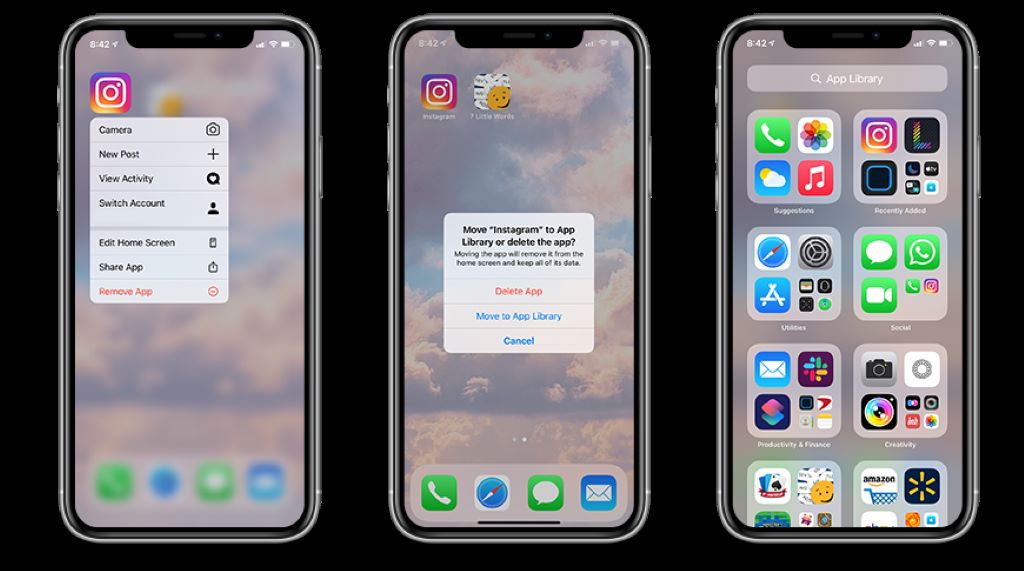
Introduced in iOS 14, the App Library is a centralized location for all your apps. While it’s designed to streamline app management, it can sometimes hide apps from plain sight. Here’s how to find and remove them:
- Access the App Library: Swipe rightmost on your home screen until you reach the last page. This is the App Library.
- Search for the app: Use the search bar at the top to find the hidden app.
- Remove the app: Tap and hold the app icon until a menu appears. Select “Delete App.”
Method 2: Checking iPhone Storage Settings
Your iPhone’s Storage settings offer a comprehensive list of apps, including those hidden from view. This method is particularly useful for identifying apps that might be consuming excessive storage.
- Go to Settings: Tap the “Settings” app on your home screen.
- Select General: Tap “General.”
- Choose iPhone Storage: Tap “iPhone Storage.”
- Find the app: Wait for the list of apps to load. You can search using the search bar at the top.
- Delete the app: Tap on the app you want to remove, then tap “Delete App.”
Method 3: Dealing with System Apps
While you can’t delete most system apps entirely, you might be able to hide them. Keep in mind that removing system apps can sometimes lead to unexpected issues. Proceed with caution.
- Identify the system app: To determine if the app you want to remove is a system app, such as Calculator or Clock, you can check its status in the application settings. Navigate to Settings > Apps > All Apps (or Installed Apps), and look for the app in question. If it’s listed under System Apps or shows options like Disable instead of Uninstall, it’s likely a system app. For more detailed steps on how to uninstall a hidden app, you can explore more resources online.
- Check for restrictions: If the app is essential for certain functions, removing it might cause problems.
- Consider third-party alternatives: For some system app functionalities, there might be reliable third-party alternatives.
How to Remove Stubborn Hidden Apps: Troubleshooting and Additional Tips
- Force Restart: If you’re facing issues finding or removing apps, a force restart might resolve temporary glitches.
- Update iOS: Ensure your iPhone is running the latest iOS version. Software updates often include bug fixes and performance improvements.
- Check for Restrictions: If you’ve set up Screen Time restrictions, they might prevent app deletion. Review your Screen Time settings.
- Consider Third-Party App Managers: While not recommended for everyone, some third-party app management tools claim to offer additional features for app organization and removal. Use these with caution and at your own risk.
Related: What Tools Can Be Used to Create Videos?
By following these steps and considering the additional tips provided in “How to Remove Stubborn Hidden Apps”, you should be able to successfully remove those stubborn hidden apps from your iPhone. Remember, a clutter-free device is a happy device!
Sorry, the comment form is closed at this time.