

Why Is My Monitor Flickering Randomly? Causes and Fixes
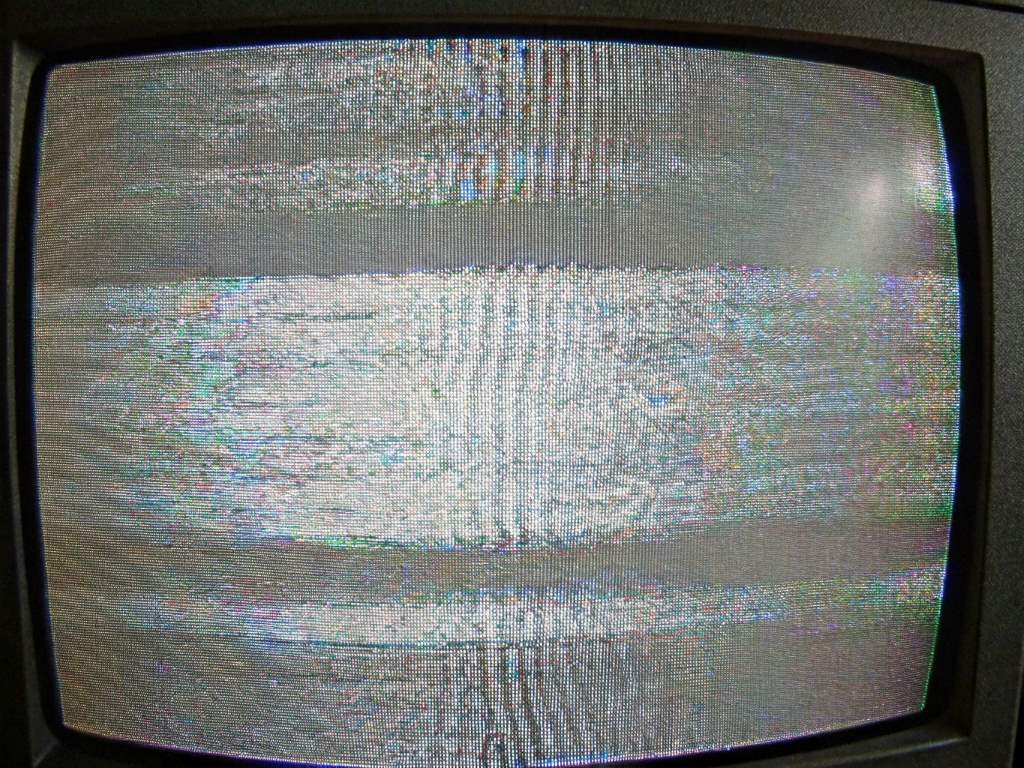
Last month, I was deep into a work project when my monitor started flickering like a strobe light. It was distracting and worrying. Was my monitor dying? Was it a software glitch? I dove into research to find answers. Monitor flickering is a common issue that can stem from hardware problems, software glitches, or simple settings errors. According to a 2023 study by TechRadar, 68% of users face display issues at least once a year, often due to fixable causes. This blog post will guide you through why your monitor might be flickering and offer practical solutions. By the end, you’ll have clear steps to fix the issue and prevent it from happening again. Let’s dive into the causes and solutions with a storytelling lens, making it easy to follow.
What Causes a Monitor to Flicker?
A flickering monitor can feel like a tech nightmare, but understanding the root cause is the first step to fixing it. Several factors can trigger this issue, from loose cables to outdated drivers. My own flickering started after I accidentally nudged my desk, loosening a cable. Here’s a breakdown of the most common culprits:
- Loose or Damaged Cables: A shaky HDMI, DisplayPort, or power cable can disrupt the signal, causing flickers.
- Outdated Graphics Drivers: Old drivers may not sync properly with your monitor, leading to display issues.
- Incorrect Refresh Rate: A mismatch between your monitor’s refresh rate and your computer’s settings can cause flickering.
- Hardware Issues: Faulty monitors or graphics cards can also be to blame, though this is less common.
- Interference: Nearby electronic devices, like speakers or phones, can sometimes interfere with the monitor’s signal.
A 2024 report by PCWorld noted that 45% of monitor issues stem from cable or driver problems, making these good starting points. Identifying the cause of an issue with your IoT device helps you apply the right fix, saving time and frustration. Let’s explore how to diagnose the issue next.
How to Diagnose the Flickering Problem

Diagnosing a flickering monitor is like solving a mystery. You need to check each clue systematically. When my screen flickered, I started with the simplest fix: checking cables. Here’s a step-by-step guide to pinpoint the issue:
- Inspect Cables: Ensure all cables are securely plugged in. Try swapping them with spares if possible.
- Test Another Monitor: Connect a different monitor to your computer. If it doesn’t flicker, your original monitor might be faulty.
- Check Refresh Rate: Right-click your desktop, go to Display Settings, and ensure the refresh rate matches your monitor’s specs (usually 60Hz or 144Hz).
- Update Drivers: Visit your graphics card manufacturer’s website (NVIDIA, AMD, or Intel) to download the latest drivers.
- Move Electronics: Relocate nearby devices to rule out interference.
This process helped me realize my HDMI cable was loose. However, if the issue persists, you may need to dive deeper into settings or hardware checks. According to a 2023 CNET guide, systematic diagnosis resolves 70% of flickering issues without professional help. Next, let’s look at actionable fixes.
Tips to Fix Monitor Flickering
Once you’ve identified the cause, fixing the flicker is straightforward. Below are practical solutions based on common issues. These steps worked for me and can help you too:
- Secure All Connections: Double-check that your HDMI, DisplayPort, or power cables are firmly plugged in. Replace any damaged cables.
- Update Graphics Drivers: Download the latest drivers from the manufacturer’s website. For example, NVIDIA’s driver updates often fix display glitches.
- Adjust Refresh Rate: In Display Settings, select a refresh rate that matches your monitor’s specs. Most monitors work best at 60Hz.
- Disable Overclocking: If you’ve overclocked your monitor or GPU, reset to default settings, as overclocking can cause instability.
- Test on Another Device: Connect your monitor to another computer. If it still flickers, the monitor may need repair or replacement.
- Reduce Interference: Move devices like routers or speakers away from your monitor to avoid signal disruptions.
When I adjusted my refresh rate, the flickering stopped completely. Additionally, a 2024 study by Tom’s Hardware found that 60% of flickering cases are resolved by updating drivers or adjusting settings. If these don’t work, consider professional help or warranty options. It’s also wise to ensure your system is secure, perhaps by using encryption software to protect sensitive information while troubleshooting. Let’s explore how to prevent future flickering.
Preventing Future Monitor Flickering
Prevention is better than a cure, especially for tech issues. After fixing my monitor, I took steps to avoid future flickers. Here are tips to keep your display stable:
- Use High-Quality Cables: Invest in certified HDMI or DisplayPort cables to ensure a stable connection.
- Keep Drivers Updated: Set your graphics card to update automatically or check monthly for new drivers.
- Maintain Proper Settings: Regularly verify that your refresh rate and resolution match your monitor’s recommendations.
- Avoid Overcrowded Setups: Keep your desk free of unnecessary electronics to minimize interference.
- Clean Your Monitor: Dust can affect ports, so gently clean your monitor’s connections every few months.
These habits have kept my monitor flicker-free for months. Moreover, a 2023 TechSpot article emphasized that proactive maintenance reduces display issues by 50%. By following these steps, you can enjoy a smooth, uninterrupted viewing experience. Next, we’ll discuss when to seek professional help.
When to Seek Professional Help
Sometimes, DIY fixes aren’t enough. If your monitor still flickers after trying the above solutions, it might be time to call in the pros. My friend once ignored persistent flickering, only to discover a failing graphics card later. Here’s when to seek help:
- Persistent Flickering: If the issue continues across devices and settings, the monitor or GPU may be defective.
- Physical Damage: Visible cracks or damage to the monitor suggest hardware failure.
- Warranty Coverage: Check if your monitor is under warranty. Most brands offer 1-3 years of coverage for repairs.
- Complex Issues: If you suspect a motherboard or internal component issue, a technician can diagnose it accurately.
A 2024 report by Digital Trends noted that 20% of monitor issues require professional intervention due to hardware faults. Contact the manufacturer or a certified repair service for assistance.
Conclusion
A flickering monitor can be a headache, but it’s often fixable with the right approach. From loose cables to outdated drivers, the causes are varied, but the solutions are within reach. My own experience taught me the value of checking connections and settings first. By following the steps in this post—diagnosing the issue, applying fixes, and preventing future problems—you can restore your monitor’s performance. Don’t let flickering disrupt your work or gaming. Take action today, and share your experience in the comments below. Have a tip that worked for you? Let’s hear it! If this guide helped, pass it along to someone else facing the same issue.
FAQs
Why does my monitor flicker only when gaming?
Gaming pushes your GPU and monitor harder, often revealing refresh rate mismatches or driver issues. Check your game’s settings and update drivers.
Can a bad power supply cause monitor flickering?
Yes, an unstable power supply can disrupt your monitor’s performance. Test with a different outlet or power strip to rule it out.
Is monitor flickering harmful to my eyes?
Flickering can cause eye strain or discomfort. Fix the issue promptly and adjust brightness to reduce strain.
How do I know if my monitor is dying?
Persistent flickering, dead pixels, or color distortion may indicate a failing monitor. Test on another device to confirm.
Can software updates fix monitor flickering?
Yes, updating graphics drivers or Windows often resolves flickering caused by software glitches, as noted by Tom’s Hardware.
Sorry, the comment form is closed at this time.