
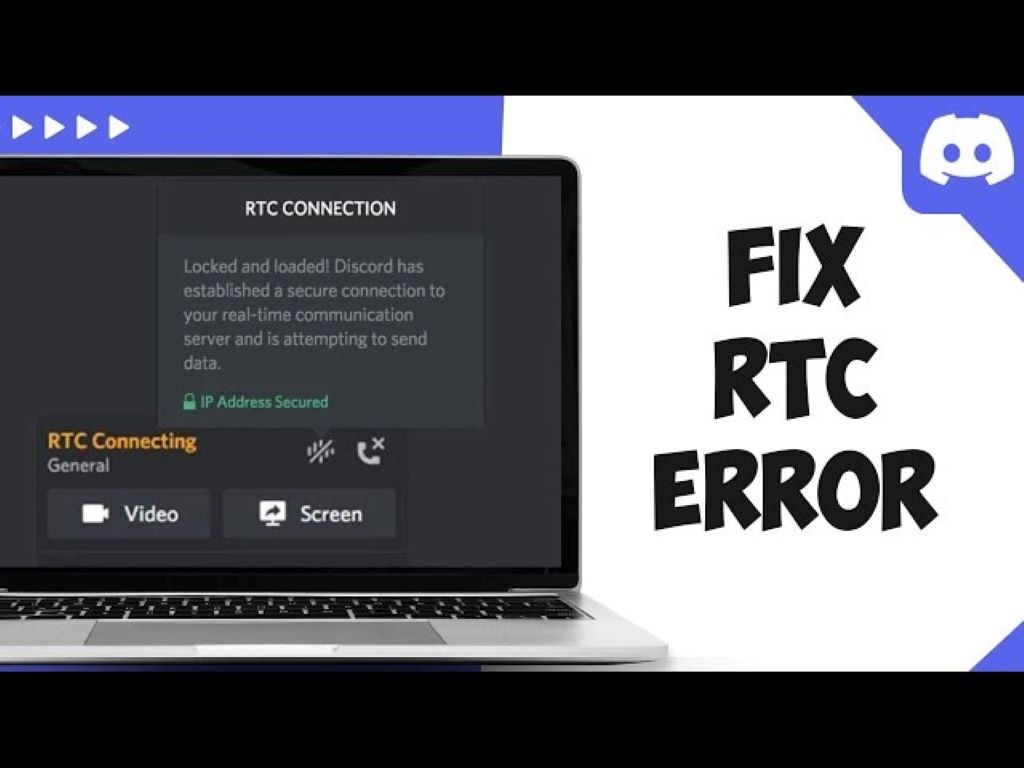
Discord RTC connecting error solutions
Discord has become an essential communication platform for gamers, remote teams, and online communities worldwide. However, nothing is more frustrating than trying to join a voice channel only to encounter the dreaded RTC connecting error. This issue prevents users from connecting to Discord’s Real-Time Communication servers, leaving them unable to participate in voice conversations. According to TechedKnow, understanding the root causes of these connection problems is the first step toward resolving them quickly and efficiently.
When you experience RTC connecting errors, your Discord client struggles to establish a stable connection with the voice servers. These problems can stem from various sources, including network configuration issues, firewall restrictions, outdated software, or server-side problems. Additionally, the error can manifest in different ways, sometimes showing as a perpetual connecting status or simply failing to join voice channels altogether.
Many users find that discord voice chat not working issues often overlap with RTC connecting errors, creating a cascade of communication problems. Therefore, identifying the specific cause affecting your connection becomes crucial for implementing the right solution. This comprehensive guide will walk you through proven methods to diagnose and fix Discord RTC connecting errors, helping you get back to seamless voice communication.
Understanding Discord RTC connecting errors
Real-Time Communication technology powers Discord’s voice and video features. When the RTC system fails, it typically indicates that your device cannot properly communicate with Discord’s voice servers. The connection process involves multiple steps, including authentication, server selection, and establishing a stable data stream for audio transmission.
Several factors can interrupt this process. Network firewalls might block the necessary ports Discord uses for voice communication. Similarly, your internet service provider could be throttling or restricting certain types of traffic. Router configurations sometimes interfere with UDP connections, which Discord relies on for optimal voice quality.
Furthermore, outdated Discord clients or corrupted installation files can cause persistent RTC errors. The application requires specific protocols and permissions to function correctly, and any disruption to these requirements results in connection failures.
Check your internet connection first
Before diving into complex troubleshooting steps, verify that your internet connection is stable and functioning properly. A weak or unstable connection often appears as RTC errors in Discord. Run a speed test to ensure you have adequate bandwidth for voice communication.
Discord recommends a minimum of 3 Mbps download and upload speed for standard voice calls. However, if you are participating in large server calls or using video, you will need higher speeds. Test your connection by visiting other websites or streaming services to rule out general connectivity issues.
Additionally, try switching between WiFi and mobile data if available. This simple test can quickly reveal whether your home network is the problem. If Discord works on mobile data but not WiFi, your router settings likely need adjustment.
Restart Discord and your device
Sometimes the simplest solutions prove most effective. Completely close Discord using the task manager rather than just clicking the X button. The application often continues running in the background, maintaining potentially corrupted connections.
After closing Discord, restart your computer or mobile device. This action clears temporary files and resets network adapters that might be causing conflicts. Once your device restarts, launch Discord fresh and attempt to join a voice channel again.
Moreover, consider clearing Discord’s cache before restarting. Navigate to your Discord installation folder and delete the cache files. This process removes potentially corrupted data that could be preventing proper RTC connections.
Configure firewall and antivirus settings
Firewalls and antivirus programs frequently block Discord’s voice connections as a security precaution. These security tools might mistakenly identify Discord’s network activity as suspicious, preventing the RTC connection from establishing successfully.
Check your Windows Firewall or security software settings to ensure Discord has permission to communicate through your network. Add Discord as an allowed application in both inbound and outbound rules. Most security software includes an exceptions list where you can whitelist Discord.
Furthermore, some users find that temporarily disabling their firewall helps identify whether it is causing the issue. However, only disable your firewall briefly for testing purposes, and remember to re-enable it afterward to maintain your system’s security.
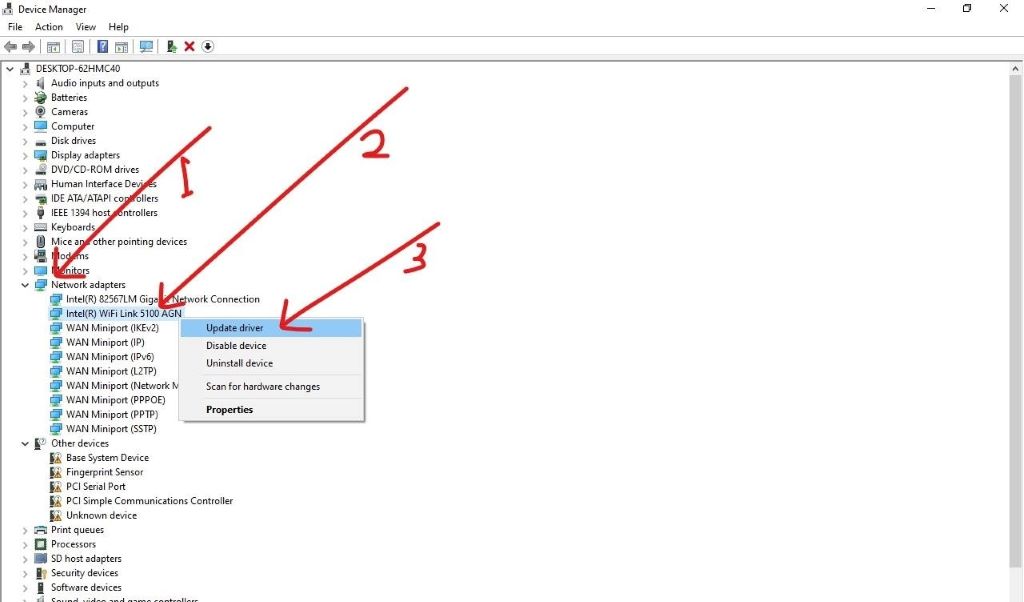
Update Discord to the latest version
Running an outdated Discord client causes numerous problems, including RTC connecting errors. Discord regularly releases updates that fix bugs, improve performance, and address connection issues. The development team at Discord continuously works on optimizing the RTC system.
Check for updates by clicking the settings gear icon and looking for any available updates. Discord typically updates automatically, but manual checks ensure you have the newest version. Alternatively, download the latest installer directly from Discord’s official website and perform a fresh installation.
Additionally, beta features sometimes introduce instability. If you have opted into Discord’s beta program, consider switching back to the stable release channel until your connection issues resolve.
Adjust Discord voice settings
Discord’s voice settings include several options that affect connection stability. Navigate to User Settings, then Voice and Video, to access these configurations. Try switching your input and output devices, even if they appear correct, as this action refreshes the audio system.
Disable advanced voice activity detection temporarily. While this feature improves conversation quality under normal circumstances, it can sometimes interfere with establishing initial connections. Similarly, turn off noise suppression and echo cancellation to determine if these features are causing conflicts.
Moreover, change the voice server region manually. Discord usually selects the optimal server automatically, but forcing a different region sometimes bypasses problematic routes. Select a server geographically close to your location for the best results.
Reset network settings
Network configuration problems frequently cause RTC connecting errors. Resetting your network settings clears problematic configurations that might be blocking Discord’s connections. On Windows, open Command Prompt as administrator and run several network reset commands.
Execute the following commands in sequence: ipconfig /release, ipconfig /flushdns, ipconfig /renew, and netsh winsock reset. These commands release your current IP address, clear DNS cache, obtain a new IP address, and reset the Windows network socket. After running these commands, restart your computer.
Furthermore, consider restarting your router and modem. Unplug both devices, wait 30 seconds, then plug them back in. This process, called power cycling, often resolves temporary network issues that affect Discord connectivity.
Configure router settings for Discord
Routers sometimes block the specific ports Discord uses for voice communication. Discord requires access to specific port ranges for optimal functionality. According to Discord’s official support documentation, the application uses ports 50000-65535 for voice and video connections.
Access your router’s administration panel by typing your router’s IP address into a web browser. Look for port forwarding or port triggering settings. Create rules that allow UDP traffic through the necessary port ranges. Consult your router’s manual for specific instructions, as interfaces vary between manufacturers. According to Discord’s official support documentation, proper port configuration is essential for stable voice connections.
Additionally, enable UPnP (Universal Plug and Play) in your router settings if available. This feature allows applications like Discord to automatically configure necessary port forwarding rules. However, remember that enabling UPnP has security implications, so weigh the benefits against potential risks.
Check Discord server status
Sometimes RTC connecting errors occur due to problems on Discord’s end rather than yours. Server outages, maintenance periods, or regional issues can prevent successful voice connections. Before spending hours troubleshooting your system, verify that Discord’s services are operational.
Visit Discord’s status page or check their official Twitter account for announcements about service disruptions. Third-party websites like Downdetector also track Discord outages and show whether other users are experiencing similar problems in your region.
Therefore, if widespread outages are affecting Discord, your best option is simply waiting until the company resolves the server-side issues. Attempting complex troubleshooting during a service outage wastes time and potentially creates new problems.
Disable VPN or proxy connections
Virtual Private Networks and proxy servers can interfere with Discord’s ability to connect to voice servers. While VPNs provide privacy benefits, they sometimes introduce latency or routing problems that manifest as RTC errors. Disconnect from your VPN temporarily and test whether Discord connects successfully.
If Discord works without the VPN, the issue lies with your VPN configuration or server selection. Try connecting to different VPN servers, preferably ones geographically closer to Discord’s server locations. Some VPN providers offer optimized servers for gaming and voice chat applications.
Moreover, ensure your proxy settings are configured correctly if you must use a proxy for internet access. Incorrect proxy configurations frequently cause connection issues across multiple applications, not just Discord.
Reinstall Discord completely
When all other solutions fail, a complete reinstallation of Discord often resolves persistent RTC connecting errors. However, simply uninstalling and reinstalling through Windows settings might not remove all corrupted files. A thorough removal requires deleting Discord’s folders manually.
Uninstall Discord through Windows Settings or Control Panel first. Then navigate to your AppData folder by typing %appdata% in the Windows search bar. Delete both the Discord folder in the Roaming directory and the Discord folder in the Local directory. This process removes all residual files that could cause problems.
After completely removing Discord, download the latest installer from the official Discord website. Run the installer and set up Discord fresh. This clean installation eliminates any corrupted files or incorrect configurations that were causing RTC errors.
Contact Discord support for assistance
If you have exhausted all troubleshooting options without success, reaching out to Discord’s support team becomes necessary. Their technical support staff can investigate account-specific issues or provide solutions for uncommon problems. Submit a detailed support ticket describing your issue, including what troubleshooting steps you have already attempted.
Include relevant information such as your operating system, Discord version, error messages, and when the problem started. Screenshots or recordings of the error can help support agents diagnose the issue more quickly. Discord’s support team typically responds within a few days, though response times vary based on ticket volume.
Additionally, Discord’s community forums and subreddit offer valuable resources where experienced users share solutions. Many community members have encountered and solved similar RTC connecting errors and willingly share their expertise.
Conclusion
Discord RTC connecting errors frustrate users by preventing voice communication, but most cases resolve through systematic troubleshooting. Start with simple solutions like checking your internet connection and restarting Discord before moving to more complex fixes involving network configurations and firewall settings. Remember that the issue might stem from Discord’s servers rather than your system, so always check the service status before extensive troubleshooting.
By following the solutions outlined in this guide, you should be able to identify and resolve most RTC connecting errors. Whether the problem originates from network settings, software conflicts, or configuration issues, these proven methods address the most common causes. Maintaining updated software, properly configured networks, and appropriate security settings helps prevent future connection problems and ensures smooth voice communication on Discord.
Frequently Asked Questions
What does RTC connecting mean on Discord?
RTC stands for Real-Time Communication, and the connecting status indicates Discord is attempting to establish a voice connection with its servers. When this process fails or gets stuck, you experience the RTC connecting error. This typically results from network configuration issues, firewall restrictions, or server problems preventing proper communication between your device and Discord’s voice servers.
Why does Discord voice keep disconnecting?
Discord voice disconnections usually stem from unstable internet connections, network congestion, or problems with your voice server region. Additionally, background applications consuming bandwidth, outdated Discord versions, or router configuration issues can cause intermittent disconnections. Try switching voice regions, updating Discord, and ensuring no other applications are consuming excessive bandwidth.
How do I fix Discord stuck on RTC connecting?
Start by checking your internet connection and restarting Discord completely. If the problem persists, verify your firewall is not blocking Discord, update to the latest Discord version, and try changing your voice server region. Additionally, resetting your network settings, disabling VPNs temporarily, and ensuring Discord has proper permissions often resolve persistent RTC connecting issues.
Does Discord need specific ports open?
Yes, Discord requires access to UDP ports 50000-65535 for voice and video connections to function properly. If your firewall or router blocks these ports, you will experience RTC connecting errors. Configure your router to allow UDP traffic through these port ranges, or enable UPnP in your router settings to allow Discord to configure ports automatically.
Can antivirus software cause Discord connection problems?
Antivirus programs and security software frequently interfere with Discord’s voice connections by blocking network traffic they perceive as suspicious. These applications might prevent Discord from accessing necessary ports or establishing UDP connections. Add Discord to your antivirus software’s exception list to prevent it from blocking legitimate Discord connections while maintaining overall system security.
Related Topics:
Building Your Brand and Engaging Customers Using Advanced Internet Technologies
Bridging the Gap: Unpacking the Differences Between Progressive Web Apps (PWAs) and Regular Web Apps
Sorry, the comment form is closed at this time.